This automatic transcription has been checked for obvious text errors and divided into paragraphs. It has not had a complete review against playback. Check the recording for exact wording and the controls shown on screen.
Open the transcript for Freezing Panes - Basic Excel Skills
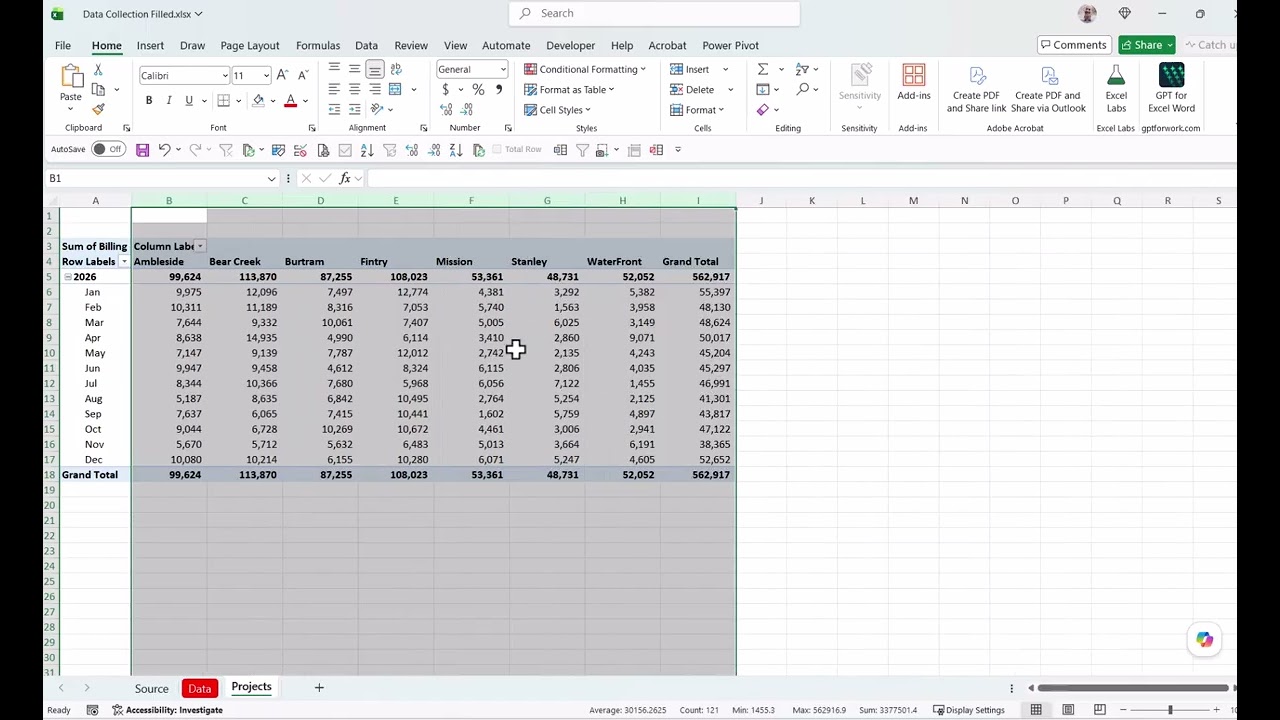
Sometimes when you're on a large sheet and you scroll down the page you start losing track of which column I'm actually in which month am I looking at and if I slide to the right I start losing track of what fields I'm looking at so Excel has a great fix for this I'm gonna go here I'm gonna go to the top and I don't really need to see these first two pages first two rows at all so So I'm going to just go down here and just move down just a little bit. And I'm going to put my cursor right here in this cell because I want to continue to see column A, B, and C in every row that I'm in. And I want to see row three as I slide down. and on the View tab, I'm going to click on Freeze Panes, and I can freeze just the top row or just the first column, or I can freeze whatever is above and to the left of my cursor. I'm going to click there, and now when I scroll down, you're going to see that row three stays there constantly.
And when I slide to the right, I'm going to see that the first three columns always stay there. I can go back to view and to freeze panes and I can unfreeze the panes and see everything back again.
Original recording on the Power Concepts YouTube channel